

What Is the Apple Watch Series 5?
The Apple Watch Series 5, released in September 2019, remains one of Apple’s most capable smartwatches. Powered by the Apple S5 dual-core chip, it introduced the Always-On Retina display — a first for the Apple Watch lineup — allowing users to see the time and key data at a glance without raising their wrist.It is available in two connectivity configurations: GPS only and GPS + Cellular, and comes in 40mm and 44mm case sizes. Whether you are managing your fitness, monitoring your heart health, or staying connected on the go, the Series 5 delivers a well-rounded experience that holds up well even by today’s standards.
Key Features of the Apple Watch Series 5
Always-On Retina Display
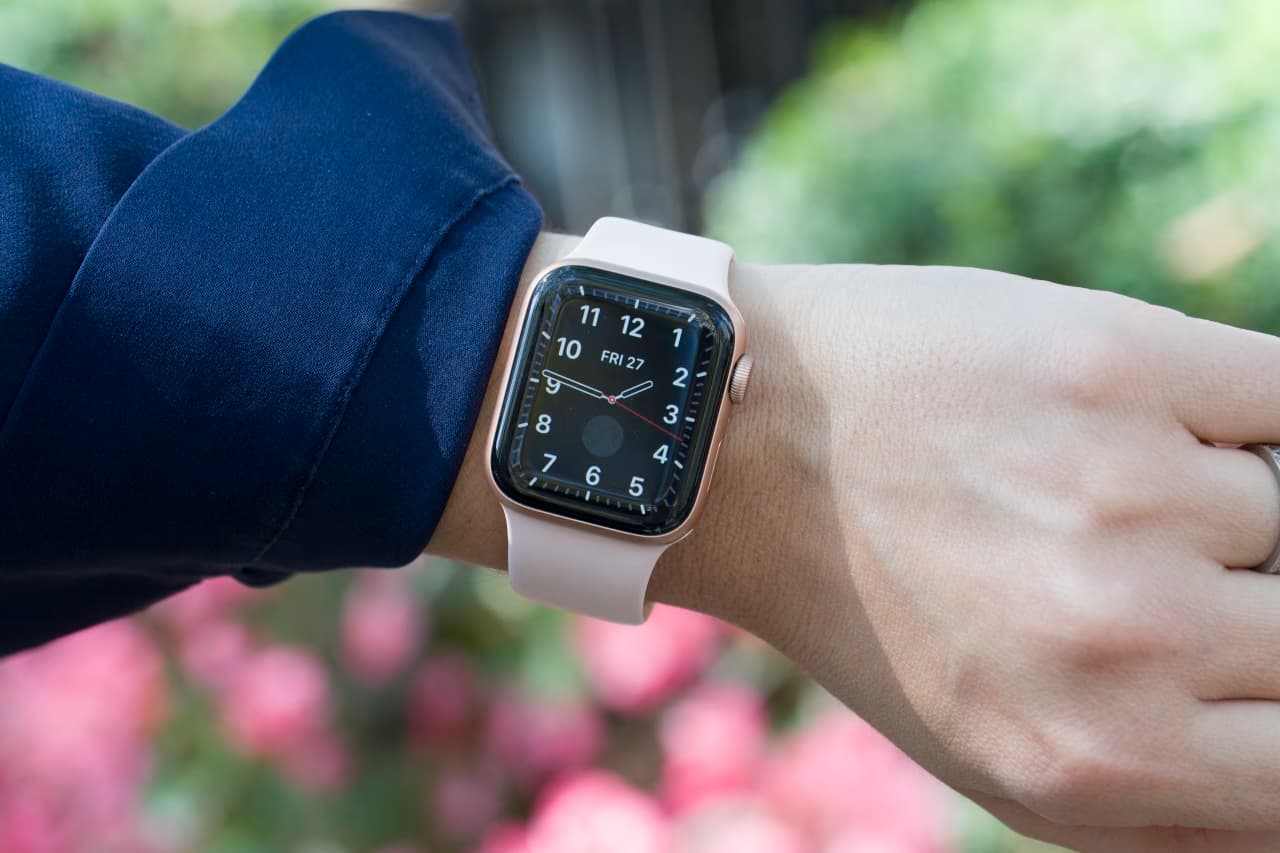
The Always-On display is the defining feature of the Series 5. Unlike earlier models that required a wrist raise to wake the screen, the Series 5 shows a dimmed watch face at all times. This makes it practical during workouts, meetings, or any situation where raising your wrist is inconvenient.
Built-In GPS and Optional Cellular
The GPS model tracks outdoor runs, walks, and cycling routes without needing an iPhone nearby. The GPS + Cellular model goes further — it allows you to make calls, send messages, and stream music independently of your iPhone, using your existing carrier plan.
Heart Rate Monitor and ECG App
The Series 5 includes an optical heart rate sensor that continuously monitors your heart rate throughout the day. It also features the ECG app, which can generate an electrocardiogram in approximately 30 seconds and flag irregular heart rhythms that may indicate atrial fibrillation. This was a clinically significant feature when introduced and remains useful for users managing cardiovascular health.
Fitness and Activity Tracking
The watch tracks three core activity rings: Move (active calories burned), Exercise (minutes of brisk activity), and Stand (hours with at least one minute of standing). It also automatically detects workouts such as running, swimming, cycling, and yoga, and can alert you if you have been sitting too long.
Built-In Compass and Altimeter
The Series 5 added a compass and an always-on altimeter, giving hikers and outdoor athletes precise directional and elevation data directly on their wrist.
Water Resistance
With a water resistance rating of 50 meters under ISO 22810:2010, the Series 5 is suitable for swimming in shallow water and can handle rain, sweat, and splashes without issue.
Apple Pay and App Store
Apple Pay lets you pay at contactless terminals without taking out your iPhone. The watch also has its own App Store, giving you access to thousands of watch-native apps for navigation, productivity, fitness, and more.
Apple Watch Series 5 Settings: A Full Walkthrough
Display and Brightness
Go to Settings > Display and Brightness to adjust screen brightness, text size, bold text, and the Always-On display toggle. Lowering brightness can extend battery life, which is worth considering given the Series 5’s approximately 18-hour battery rating.
Sound and Haptics
This menu controls how the watch alerts you. You can set the alert volume, enable or disable Silent Mode, and adjust the intensity of haptic (vibration) alerts. The Prominent Haptic option adds an extra tap before certain notifications, which is helpful if you frequently miss standard vibrations.
Passcode and Security
Setting a passcode locks the watch whenever it leaves your wrist. Within this menu you can also:
- Enable Wrist Detection so the watch locks automatically when removed
- Allow the watch to unlock when your iPhone is unlocked
- Turn on the Erase Data option, which wipes the watch after 10 consecutive failed passcode attempts
This is especially important if the watch contains health data, payment cards, or email access.
Privacy Settings
Privacy controls let you manage which apps have access to your location, health data, motion and fitness sensors, microphone, and Siri. It is worth reviewing these periodically, particularly for third-party apps downloaded from the App Store.
Connectivity: Bluetooth, Wi-Fi, and Cellular
The Apple Watch Series 5 uses Bluetooth to stay paired with your iPhone for notifications, calls, and app syncing. When the watch is on the same Wi-Fi network as your iPhone, it maintains many of these features even if the phone is in another room. On cellular models, you can manage your carrier plan directly from the Watch app on iPhone or through Settings > Cellular on the watch.
General Settings
The General menu is the most comprehensive settings area on the watch. It includes:
- Software Update — for installing watchOS updates
- Orientation — set whether you wear the watch on your left or right wrist, and which side the Digital Crown faces
- Language and Region — adjust display language and date/time formats
- Background App Refresh — control which apps update in the background (disabling unused apps here can improve battery life)
- Storage — view how much space is used by apps, music, and photos
- Reset — access all reset and recovery options
How to Reset and Recover Apple Watch Series 5
When Should You Reset?
You should consider a reset when the watch is frozen or unresponsive, apps are crashing repeatedly, performance has degraded significantly, you have forgotten your passcode, or you plan to sell or give the watch away.
Always start with a simple restart before attempting a factory reset.
Option 1: Restart (Soft Reset)
A restart clears temporary system errors without deleting any data.
- Press and hold the Side Button until the Power Off slider appears.
- Drag the slider to turn the watch off.
- Press and hold the Side Button again until the Apple logo appears.
This should be your first step for any minor issue, such as an unresponsive app or a sluggish interface.
Option 2: Force Restart (Hard Reset)
If the watch is completely frozen and will not respond to touch or button presses, use a force restart.
- Press and hold both the Digital Crown and the Side Button simultaneously.
- Continue holding until the Apple logo appears on screen.
This process does not erase any content or settings. It simply forces the operating system to reboot.
Option 3: Factory Reset from the Watch
A factory reset erases all data, apps, and settings, returning the watch to its out-of-box state.
- Open Settings on the watch.
- Tap General.
- Scroll down and tap Reset.
- Tap Erase All Content and Settings.
- Enter your passcode if prompted and confirm.
Use this option when preparing the watch for a new owner or when troubleshooting a persistent software issue that restarts have not resolved.
Option 4: Reset Using the iPhone
If your watch is still paired to your iPhone, resetting from the Apple Watch app is often the easiest method and also creates a backup automatically.
- Open the Apple Watch app on your iPhone.
- Tap My Watch at the bottom of the screen.
- Go to General > Reset.
- Tap Erase Apple Watch Content and Settings.
- Confirm when prompted.
The backup created during this process can be restored when you set the watch up again, preserving your activity data, app layout, and preferences.
Option 5: Reset When Passcode Is Forgotten
If you cannot remember your passcode, you cannot access the watch normally. Here is how to erase it:
- Place the watch on its charger.
- Press and hold the Side Button until the Power Off slider appears.
- Release the Side Button, then press and hold the Digital Crown.
- Tap Erase All Content and Settings when it appears.
After erasing, you can pair the watch to your iPhone again and restore from a previous backup if one exists.
Option 6: Unpair the Apple Watch
Unpairing the watch from your iPhone performs a full reset and also removes Activation Lock, which is essential if you are selling the device. Without removing Activation Lock, the new owner cannot set up the watch.
- Open the Apple Watch app on your iPhone.
- Tap All Watches at the top of the screen.
- Tap the info icon next to your watch.
- Tap Unpair Apple Watch and confirm.
A backup is automatically saved to your iPhone during unpairing.
Comparing Apple Watch Series 5 to Nearby Models
Buyers often compare the Series 5 with adjacent models. The Series 4 introduced the larger display and ECG sensor that the Series 5 carried forward. The Series 6 added blood oxygen monitoring and a faster chip but is otherwise similar in form. The Series 5 sits in a strong middle position — it has the ECG and Always-On display without the price premium of newer models.
Battery Life and Charging Tips for Apple Watch Series 5
Apple rates the Series 5 at up to 18 hours of typical use, though enabling the Always-On display, using cellular frequently, or running GPS-heavy workouts will reduce this. To extend battery life:
- Reduce display brightness
- Turn off Background App Refresh for apps you rarely use
- Enable Power Reserve mode during long days (this shows only the time)
- Charge overnight using the included magnetic charging cable
watchOS Compatibility and Software Support
The Apple Watch Series 5 launched with watchOS 6 and supports updates through watchOS 11. Staying on a current watchOS version ensures you receive security patches and feature updates. You can check for updates under Settings > General > Software Update on the watch, or through the Watch app on iPhone.
Frequently Asked Questions (People Also Ask)
How do I reset my Apple Watch Series 5 without my iPhone?
Go to Settings > General > Reset > Erase All Content and Settings directly on the watch. If you have forgotten your passcode, place the watch on its charger, hold the Side Button, then hold the Digital Crown and tap Erase All Content and Settings.
Does Apple Watch Series 5 still receive software updates?
Yes, as of the latest available information, the Apple Watch Series 5 supports watchOS 11, which includes ongoing security and performance updates.
What is the difference between a restart and a factory reset on Apple Watch Series 5?
A restart reboots the system without deleting any data. A factory reset erases everything on the watch and returns it to factory settings.
Can I use Apple Watch Series 5 without an iPhone?
The GPS + Cellular model can make calls, send messages, and stream music independently. However, initial setup, app installation, and software updates require an iPhone running iOS 13 or later.
How do I remove Activation Lock from Apple Watch Series 5 before selling it?
Unpair the watch from your iPhone using the Apple Watch app. This automatically erases the device and removes Activation Lock, allowing the new owner to set it up with their own Apple ID.