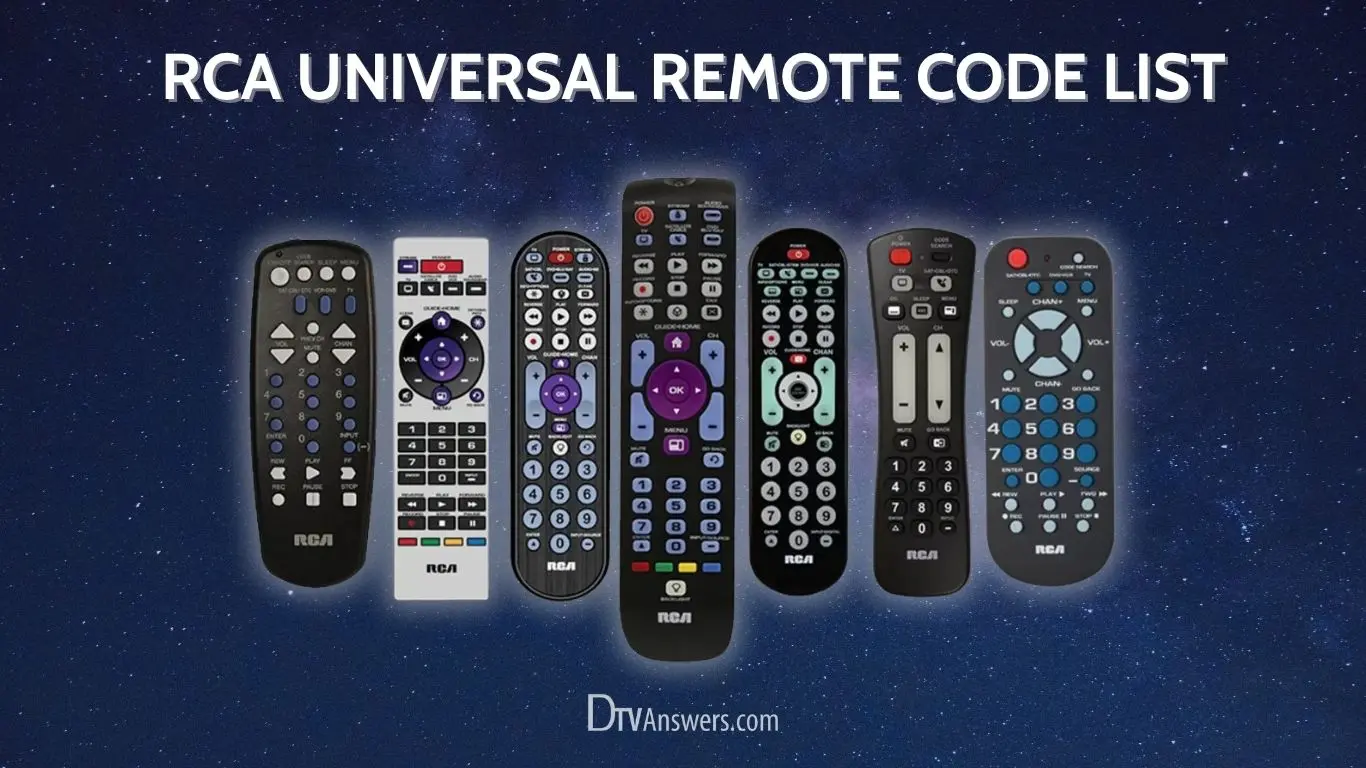

If you’re trying to simplify your entertainment setup by using one remote for multiple devices, the RCA universal remote is a very practical choice. In this article we’ll walk you through everything you need to know — selecting the right remote codes, programming your remote (with and without codes), troubleshooting common issues, plus a useful FAQs section at the end.
Why Use an RCA Universal Remote?
Using a universal remote like one from RCA offers several benefits:
-
One-remote convenience: Control your TV, DVD/Blu-ray player, set‐top box, and more with a single remote.
-
Replaces lost or broken remotes: If your original device remote is missing or damaged, a universal RCA remote can step in easily.
-
Supports many brands and device types: Thanks to code lists and auto-search features, the RCA remote works with a wide variety of brands and devices. ]Cost-effective and flexible: Instead of buying multiple remotes, one universal model gives you flexibility.
Given its popularity and broad support, it’s worth learning how to program the remote properly.
Finding the Right Codes
The key to making your RCA remote work is finding the correct code for your device (TV, DVD, cable box, etc.). Here’s how you approach it:
1. Using code lists
Many websites provide lists of codes by brand and device type for RCA universal remotes. For example:
-
A site lists codes for TVs of many brands with 3-digit, 4-digit, and 5-digit numbers.
-
For example, some popular codes: Admiral: 0463, 4030, 4111, 4221, 10093, 10463.
-
The RCA official site provides a “Remote Code Finder” where you input your remote revision and brand to get available codes.
2. Check your remote’s revision number
Different versions of RCA universal remotes may support different code lists. You’ll often find a revision or code-list version inside the battery compartment of the remote.
3. If codes fail — use auto search
If you cannot find a working code, many RCA remotes support an auto-search or code search method that doesn’t require you to manually enter a code. For example: point the remote at the device, hold down the TV (or device) button and Power or Setup button, then press Play or Power repeatedly until the device responds, then save it.
Programming the RCA Remote: Step-By-Step
A. Manual Code Entry Method
Here’s the typical method when you have a code.
-
Turn on the device (e.g., your TV) you want to program the remote for.
-
Insert fresh batteries into the remote (weak batteries may cause failure). On the remote, press and hold the Setup button (or the device key, depending on model) until the indicator LED stays lit. In some models you press the device button (TV, DVD, etc.), then Setup.
-
While the LED is lit, press the device key (e.g., TV for a television).
-
Enter the code for the brand using the numeric keypad. The LED should turn off indicating the code was accepted. If the LED blinks twice, the code did not work — try the next one.
-
Test the remote by pressing Power, Volume, Channel buttons. If they work, you’re done. If not, repeat with another code.
B. Auto-Search (Without Code) Method
If you can’t find a working code or prefer not to look up lists, use this method.
-
Turn on the device you wish to program and ensure remote is pointed at it.
-
On the remote, press and hold Code Search (or Setup) until the indicator LED turns on and stays on.
-
Press and release the device key (TV, DVD, etc.). The LED will blink then stay lit.
-
Press the remote’s Power button repeatedly (or in some models Play/slow) every few seconds until the device turns off. This may take many tries.
-
Once the device turns off, press Enter or Stop (depending on model) to lock in the code.
-
Test various buttons to ensure full functionality.
C. Programming for Multiple Devices
If your RCA remote supports multiple devices (TV, DVD, Blu-ray, Cable/Sat, AUX), repeat the steps for each device key. Insert fresh batteries each time, point the remote at the device, choose the correct device key on the remote, and either use the code list or auto-search.
Common Problems & Troubleshooting
Even when you follow the steps carefully, programming may fail or functionality may be incomplete. Common issues and remedies:
-
Wrong code entry: If the LED blinks twice after entering a code, it’s not valid. Try the next code in the list.
-
Weak batteries: Remote may not send proper IR signals — always use new or fully charged batteries.
-
Device too far away / angle: Point the remote directly at the device’s IR sensor; ensure nothing is blocking line of sight.
-
Remote doesn’t support all device functions: Some codes may only control basic functions (Power, Volume) but not advanced features (Menu, Input). Try a different code.
-
Model mismatch: Ensure you selected the correct device type (TV, DVD, CBL/SAT) when programming.
-
Remote not compatible: In rare cases, the device may not respond because of unusual IR protocols or licensing—for instance some TVs are manufactured under license by other companies and might require a different code series. The official RCA guide warns of this.
-
Reset and reprogram: If nothing works, reset the remote (often by holding Setup until LED turns off or removing batteries) and try again from scratch.
Sample Code List (for Reference)
Here is a short sample of codes for some brands with RCA universal remotes — make sure you consult the full list for your brand/model. Admiral: 0463, 4030, 4111, 4221, 10093, 10463
-
Aiwa: 1362
-
Akai: 1675, 11675, 10702, 10672
-
AOC: 1589, 3720, 1365, 2014, 2087, 4101, 11365, 11589, 12014, 12087
-
Dynex: 2049, 2184, 11463, 11785, 11810, 12049, 12184
-
Sony: 0810, 1300, 1317 (4‐digit), 11300, 10000, 10810, 12778 (5-digit)
-
Vizio: 2707, 0864, 1758, 2757, 3758, 0885 (4-digit), 11758, 14723, 14905 (5-digit)
Keep in mind this is not a complete list; you should refer to the full list on the RCA site or your remote’s manual.
Best Practices & Tips
-
Keep the remote’s manual (and code list) handy so you can reprogram if needed (e.g., after battery removal).
-
Label your devices and the remote device key (TV1, TV2, DVD, etc) for clarity if you have multiple remotes or devices.
-
Try the simplest / lowest numbered code first for your brand — often older models use the first one listed.
-
After programming, test all major functions (Power, Volume, Channel, Input, Menu) to ensure full compatibility — if some don’t work, try a different code.
-
If using auto-search, have patience — it may take many button presses until the correct code is found.
-
Write down the successfully programmed code somewhere for future reference (this saves you repeating the process).
-
If you change or replace a device (e.g., new TV), you’ll need to reprogram the RCA remote — it doesn’t automatically update.
FAQs
Q1: How do I know which code to use for my RCA universal remote?
A: First check the brand of your device (TV, DVD, etc). Then refer to the code list for your remote — you might find 3-, 4- or 5-digit codes. Alternatively, use auto-search if none of the codes work.
Q2: What if none of the codes work?
A: Try the auto-search method (point remote at device, hold Setup/Code Search, then press Power/Play repeatedly until device turns off). Make sure you are keeping the remote pointed correctly, using fresh batteries, and selecting the right device key.
Q3: Why are some buttons not working after programming?
A: This often means the code is only partially compatible (basic functions only). Try a different code from your list for your brand. Some advanced functions (Input, Menu) may require a different code.
Q4: Can the RCA remote control multiple devices (TV, DVD, Cable)?
A: Yes. Many RCA universal remotes support control of several device types—TV, DVD/Blu-ray, CBL/SAT, AUX, etc. You’ll program each device separately by selecting the appropriate device key on the remote.
Q5: What should I do if I’ve lost the manual or code list?
A: You can use the official RCA remote code finder on their website; enter your remote’s revision, device type and brand to get a list of codes. Also you can use auto-search to program without needing manuals.
Q6: Could the remote stop working after a while even if it was programmed?
A: Yes — possible causes: batteries died/weak, remote no longer aimed correctly, device firmware changed/IR signal changed, or someone accidentally reprogrammed it. If this happens, re-programming may be required.